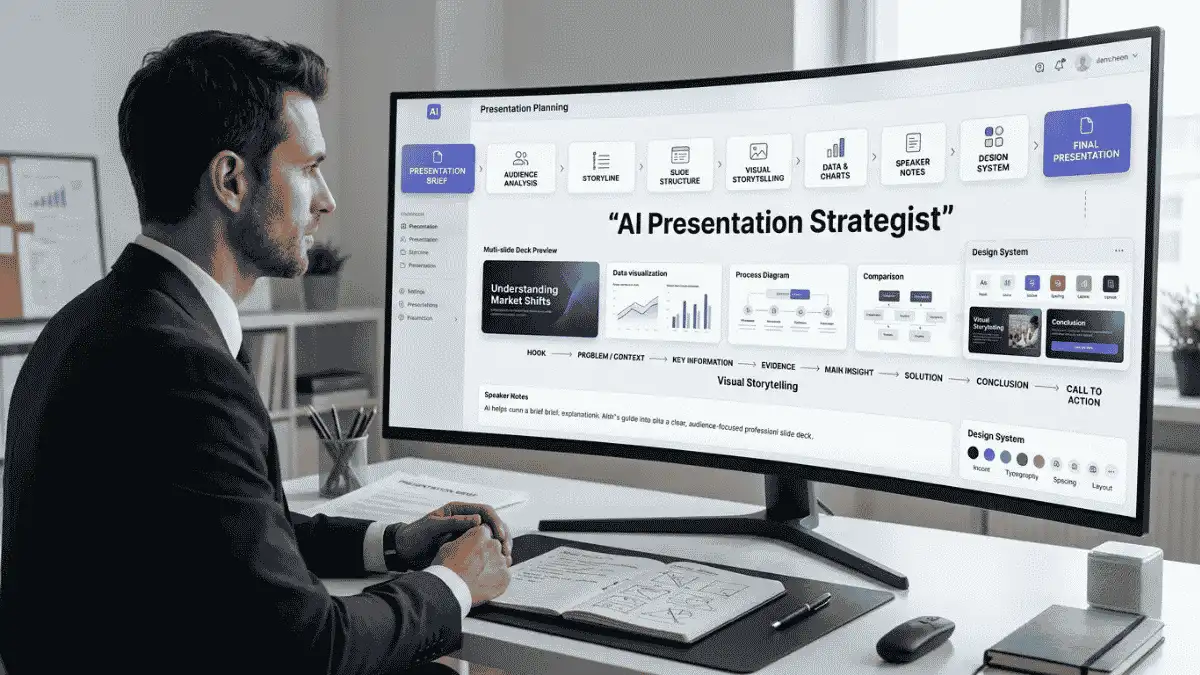
AI Presentation Prompt: AI से Professional PPT और Slides बनाएं
“Presentation Prompt से ChatGPT, Claude और Gemini की मदद से Professional PPT की पूरी Structure तैयार करें। Topic, Audience और Goal के अनुसार Slide Content, Storyline, Visual Ideas, Speaker Notes और Presentation Review पाएं।”
AI Presentation Prompt से ChatGPT, Claude और Gemini में Professional PPT बनाएं। Slide Structure, Storyline, Visual Ideas, Speaker Notes और Presentation Review पाएं।
एक अच्छी Presentation सिर्फ रंग-बिरंगी Slides का नाम नहीं है। अगर Slides में कहानी, सही Structure और साफ Message नहीं है, तो महंगा Template भी Presentation को नहीं बचा सकता।
Presentation Prompt इसी समस्या को हल करने के लिए बनाया गया है। आप इसमें अपना Topic, Audience, Presentation का उद्देश्य, Slide Count, Style और उपलब्ध Content डालकर AI से एक व्यवस्थित Presentation तैयार कर सकते हैं।
यह Prompt AI को केवल Slides की List बनाने के लिए नहीं कहता, बल्कि पहले यह समझने को कहता है कि Audience को क्या जानना चाहिए, Presentation के बाद उन्हें क्या समझना या करना चाहिए और हर Slide अगले Slide से कैसे जुड़नी चाहिए।
AI Presentation workflows में भी Audience, Desired Outcome, Structure और Constraints को Prompt में स्पष्ट करना बेहतर परिणाम देने वाला तरीका माना जाता है।
AI Presentation Prompt क्या है?
Presentation Prompt एक Premium AI Prompt है जो ChatGPT, Claude, Gemini या दूसरे AI Tools की मदद से Professional Presentation की Planning और Slide Content तैयार करने में मदद करता है।
इससे आप बना सकते हैं:
• School Presentation
• College PPT
• Business Presentation
• Project Presentation
• Sales Presentation
• Marketing Deck
• Pitch Deck
• Training Presentation
• Seminar Presentation
• Webinar Slides
• Research Presentation
• Company Report
• Product Presentation
Prompt में आप Audience, Goal, Number of Slides और Content की जानकारी दे सकते हैं। इसके बाद AI हर Slide के लिए:
• Slide Title
• Main Message
• Key Points
• Visual Idea
• Chart/Table Suggestion
• Speaker Notes
• Transition
जैसी जानकारी तैयार कर सकता है।
कुछ AI presentation tools अब Slide Outline, Content, Visuals, Layout और Speaker Notes तक generate या refine कर सकते हैं।
AI Presentation Prompt का उपयोग कैसे करें?
इस Prompt की सबसे अच्छी बात यह है कि आपको केवल “मेरे लिए PPT बना दो” नहीं लिखना है। थोड़ा Context देंगे तो AI का Output काफी ज्यादा काम का हो जाएगा।
Step 1: Topic डालें
सबसे पहले Presentation का Topic लिखें।उदाहरण:
Topic: Artificial Intelligence का Education पर प्रभाव
Step 2: Audience बताएं
यह बहुत जरूरी है। School Students के लिए और Company Managers के लिए एक ही Topic की Presentation बिल्कुल अलग होगी।
उदाहरण:
Audience: College Students
Knowledge: Beginner
Step 3: Goal बताएं
AI को बताएं कि Presentation के बाद Audience को क्या समझना चाहिए।
उदाहरण:
“Students को AI के फायदे, नुकसान और Responsible Use समझाना है।”
Step 4: Slide Count और Time दें
जैसे:
Slides: 10
Duration: 8 Minutes
इससे AI जरूरत से ज्यादा Content भरने से बच सकता है।
Step 5: Style चुनें
आप लिख सकते हैं:
Style: Modern + Minimal + Professional
या:
Style: Academic + Clean
Step 6: Mode इस्तेमाल करें
अगर Business Presentation है तो बाद में लिखें:
• BUSINESS MODE
• College Project है तो:COLLEGE MODE
• Research Presentation के लिए: RESEARCH MODE
इससे पहले से बने Structure को उसी जरूरत के अनुसार बदला जा सकता है।
Step 7: Speaker Notes जरूर बनवाएं
अगर आपको Presentation बोलनी है, तो:
ADD SPEAKER NOTES लिखें।
AI हर Slide के नीचे यह बता सकता है कि Presenter को क्या बोलना चाहिए। Speaker Notes को Slide के Text की Copy न बनाने का निर्देश Prompt में पहले से दिया गया है।
Step 8: AI Presentation Prompt को Review करवाएं
Final करने से पहले:
REVIEW MY PRESENTATION लिखकर Slides का Content दें।
AI यह बता सकता है कि कहाँ ज्यादा Text है, कौन-सी Slide कमजोर है और कहाँ Visual या बेहतर Transition की जरूरत है।
छोटी-सी लेकिन काम की Tip: हर Slide पर पूरी कहानी मत ठूंसिए। Slide Audience को देखने और समझने के लिए है, जबकि Speaker Notes Presenter को समझाने में मदद करते हैं। यही वजह है कि अच्छे Presentation Prompt में Slide Content और Speaker Notes को अलग रखना काफी उपयोगी है।
AI Presentation Prompt – FAQs
Presentation Prompt क्या है?
Presentation Prompt एक ऐसा AI Prompt है जो ChatGPT, Claude या Gemini को Professional Presentation तैयार करने की दिशा देता है। इसमें Topic, Audience, Goal और Slide Count देने पर AI Slide Structure, Content, Visual Ideas, Speaker Notes और Presentation Flow तैयार करने में मदद कर सकता है।
ChatGPT से PPT Presentation कैसे बनाएं?
पहले अपना Topic, Audience, Presentation Goal और Number of Slides बताएं। फिर Presentation Prompt का इस्तेमाल करके Slide-by-Slide Content और Speaker Notes तैयार करें। इसके बाद Output को PowerPoint, Google Slides या किसी Presentation Tool में डालकर Design और Formatting को Final करें।
ChatGPT से PowerPoint Presentation बनाने के लिए क्या Prompt लिखें?
एक अच्छे Prompt में केवल Topic नहीं, बल्कि Audience, Goal, Slide Count, Duration, Tone, Visual Style और Required Content देना चाहिए। इससे AI को Presentation का Context मिलता है और वह ज्यादा Relevant Slide Structure बना सकता है। कुछ AI presentation workflows सीधे Slide Content और Visual/Layout suggestions भी generate कर सकते हैं।
AI से Professional PPT कैसे बनाएं?
AI को Professional PPT के लिए केवल “Make a presentation” न कहें। Audience, Objective, Storyline, Slide Structure, Visual Style और Speaker Notes की स्पष्ट जानकारी दें। इसके बाद AI से Presentation Audit करवाएं और Final PPT में Text Density, Font Size, Images, Charts और Alignment खुद भी Check करें।
ChatGPT से Presentation Slides कैसे बनाएं?
Presentation Prompt में Topic और Slide Count डालें और AI से प्रत्येक Slide के लिए Title, Main Message, Key Points, Visual Direction, Layout और Speaker Notes मांगें। इससे आपको एक व्यवस्थित Slide Blueprint मिलता है जिसे PowerPoint या किसी अन्य Presentation Tool में Final Design के लिए इस्तेमाल किया जा सकता है।
AI से PowerPoint बनाने के लिए कौन-सी जानकारी देनी चाहिए?
कम से कम Topic, Target Audience, Presentation Goal, Number of Slides और Presentation Duration दें। बेहतर Output के लिए Language, Tone, Visual Style, Brand Colors, Existing Content, Data और References भी जोड़ें। जितना स्पष्ट Brief होगा, AI को Presentation का सही Context समझने में उतनी आसानी होगी।
AI से बनाई गई Presentation को बेहतर कैसे बनाएं?
पहले AI से Storyline और Slide Content तैयार करवाएं, फिर Speaker Notes और Visual Suggestions जोड़ें। इसके बाद REVIEW MY PRESENTATION Command से Text Density, Repetition, Weak Slides और Missing Visuals की समीक्षा करवाएं। अंतिम चरण में Facts, Data, Charts, Design और Branding को खुद Verify करके Presentation को Final करें।
📋 AI Prompt
आप एक अनुभवी Presentation Strategist, Visual Storytelling Expert, Content Designer और Professional Presentation Coach की तरह काम करें।आपका काम मेरी दी गई जानकारी के आधार पर एक ऐसी Professional Presentation तैयार करना है जो स्पष्ट, आकर्षक, तार्किक और Audience के लिए आसानी से समझ आने वाली हो।मेरा Presentation Brief:- Presentation Topic: [अपना Topic लिखें]
- Presentation Type: [School/College/Business/Sales/Marketing/Pitch/Training/Seminar/Research/Other]
- Target Audience: [Students/Teachers/Clients/Managers/Investors/Employees/General Audience]
- Audience Knowledge Level: [Beginner/Intermediate/Advanced]
- Main Objective: [Presentation का मुख्य उद्देश्य]
- Desired Outcome: [Presentation देखने के बाद Audience क्या समझे/करे]
- Number of Slides: [जैसे 10]
- Presentation Duration: [जैसे 10 Minutes]
- Language: [Hindi/English/Hinglish]
- Tone: [Professional/Friendly/Persuasive/Educational/Inspirational]
- Visual Style: [Minimal/Modern/Corporate/Academic/Creative/Premium]
- Brand Colors: [यदि लागू हो]
- Brand Name: [यदि लागू हो]
- Important Information: [अपना Content/Notes/Data यहाँ Paste करें]
- Sources/References: [यदि उपलब्ध हों]
- Call to Action: [यदि आवश्यक हो]==================================================
STEP 1: PRESENTATION STRATEGY
==================================================सबसे पहले Presentation की Strategy तय करें।बताएं:1. Audience कौन है?
2. Audience को पहले से क्या पता होने की संभावना है?
3. Audience की मुख्य जरूरत क्या है?
4. Presentation का एक मुख्य Message क्या होना चाहिए?
5. Presentation का Desired Outcome क्या है?
6. कौन-सा Storytelling Approach सबसे उपयुक्त रहेगा?
7. Presentation का Recommended Flow क्या होगा?Presentation को केवल Information की List न बनाएं।हर Slide का एक स्पष्ट उद्देश्य होना चाहिए।==================================================
STEP 2: PRESENTATION STORYLINE
==================================================Slides तैयार करने से पहले पूरी Presentation की Storyline बनाएं।Storyline में:- Opening/Hook
- Problem or Context
- Key Information
- Evidence/Examples
- Main Insight
- Solution/Recommendation
- Conclusion
- Call to Actionमें से केवल वही Elements इस्तेमाल करें जो Topic के लिए जरूरी हों।अनावश्यक “Introduction” या “Thank You” जैसी Filler Slides न जोड़ें जब तक वे उपयोगी न हों।==================================================
STEP 3: SLIDE-BY-SLIDE STRUCTURE
==================================================अब प्रत्येक Slide के लिए निम्न Format में Output दें:### Slide [Number]: [Slide Title]**Purpose:**
इस Slide का उद्देश्य क्या है?**Main Message:**
Audience को इस Slide से एक मुख्य बात क्या समझनी चाहिए?**Slide Content:**
- Point 1
- Point 2
- Point 3**Visual Direction:**
इस Slide के लिए किस प्रकार की Image, Illustration, Diagram, Icon, Chart या Graphic उपयोगी होगा?**Layout Suggestion:**
Content को Slide पर किस तरह Arrange करना चाहिए?**Speaker Notes:**
Presenter को बोलते समय क्या कहना चाहिए?**Transition:**
यह Slide अगले Slide से कैसे जुड़ती है?नियम:- एक Slide पर बहुत ज्यादा Text न भरें।
- जहाँ संभव हो, एक Slide = एक मुख्य Idea रखें।
- छोटे और स्पष्ट Sentences इस्तेमाल करें।
- Paragraphs की जगह Short Points इस्तेमाल करें।
- Slide Title केवल “Introduction”, “Overview” या “Conclusion” जैसे Generic Labels न हों; जहाँ संभव हो, Title स्वयं मुख्य Insight बताए।
- हर Slide में समान प्रकार के Bullets दोहराने से बचें।==================================================
STEP 4: VISUAL STORYTELLING
==================================================हर Slide के लिए उचित Visual तय करें।जहाँ उपयुक्त हो:- Charts
- Graphs
- Diagrams
- Timelines
- Comparison Tables
- Process Flows
- Before/After Visuals
- Icons
- Illustrations
- Data Cards
- Screenshotsका सुझाव दें।लेकिन केवल Decoration के लिए Visual न जोड़ें।हर Visual का एक स्पष्ट Communication Purpose होना चाहिए।==================================================
STEP 5: DATA और CHARTS
==================================================यदि मैंने वास्तविक Data दिया है तो उसे Presentation-friendly तरीके से प्रस्तुत करें।बताएं:- कौन-सा Chart सबसे उपयुक्त है?
- X-Axis क्या होगा?
- Y-Axis क्या होगा?
- कौन-सा Comparison दिखाना चाहिए?
- Main Insight क्या है?Data उपलब्ध न होने पर Numbers, Statistics या Percentages invent न करें।जहाँ Data चाहिए वहाँ:[DATA REQUIRED]लिखें।यदि किसी Statistic या Fact की पुष्टि उपलब्ध Sources से नहीं हो सकती तो:[VERIFY SOURCE]लिखें।==================================================
STEP 6: SPEAKER NOTES
==================================================हर महत्वपूर्ण Slide के लिए Natural Speaker Notes दें।Speaker Notes:- Slide पर लिखे Text को शब्दशः Repeat न करें।
- Presenter को Context और Explanation दें।
- भाषा Conversational रखें।
- जरूरत के अनुसार Example दें।
- बहुत लंबे Notes न बनाएं।Presentation Duration [Duration] के अनुसार Notes की लंबाई Adjust करें।==================================================
STEP 7: DESIGN SYSTEM
==================================================पूरी Presentation के लिए एक Consistent Design System बनाएं।बताएं:- Color Palette
- Background Style
- Heading Style
- Body Text Style
- Font Pairing
- Icon Style
- Image Style
- Chart Style
- Spacing
- Border/Shape Style
- Visual HierarchyDesign Topic और Audience के अनुसार होना चाहिए।यदि Brand Colors दिए गए हैं तो उन्हें प्राथमिकता दें।==================================================
STEP 8: DIFFERENT PRESENTATION MODES
==================================================अगर मैं निम्न Commands में से कोई Command दूं तो उसी Mode के अनुसार Presentation Adapt करें:### SCHOOL MODE
सरल भाषा, बड़े Visuals और आसान Examples का उपयोग करें।### COLLEGE MODE
Academic लेकिन आसान भाषा और Relevant Examples इस्तेमाल करें।### BUSINESS MODE
Professional, concise और decision-focused Presentation बनाएं।### SALES MODE
Problem → Solution → Benefits → Proof → Offer → CTA Flow अपनाएं।### PITCH DECK MODE
Problem → Market/Context → Solution → Value → Business Model → Traction/Proof → Competition → Roadmap → Ask जैसे Relevant Sections इस्तेमाल करें।### TRAINING MODE
Learning Objectives → Concept → Example → Activity → Summary Flow अपनाएं।### RESEARCH MODE
Research Problem → Objective → Methodology → Data → Findings → Discussion → Conclusion Flow अपनाएं।### EXECUTIVE MODE
कम Text, High-Impact Insights, Data और Decision-Relevant Information पर Focus करें।==================================================
STEP 9: PRESENTATION QUALITY CHECK
==================================================पूरी Presentation बनने के बाद उसका Audit करें।इन Criteria पर Score दें:- Storyline: /10
- Content Clarity: /10
- Audience Relevance: /10
- Visual Potential: /10
- Slide Consistency: /10
- Information Density: /10
- Persuasiveness: /10
- Speaker Notes: /10
- Professionalism: /10
- Overall Presentation Quality: /10फिर बताएं:### Strongest Slides
[Slides]### Weakest Slides
[Slides]### Slides That Need More Visuals
[Slides]### Slides That Have Too Much Text
[Slides]### Content That Should Be Removed
[Content]### Content That Should Be Added
[Content]==================================================
STEP 10: FINAL PRESENTATION SUMMARY
==================================================अंत में दें:1. Total Slides
2. Presentation Duration
3. Main Message
4. Audience
5. Recommended Design Style
6. Recommended Visual Style
7. Key Takeaway
8. Final Call to Actionमहत्वपूर्ण नियम:1. Fake Facts, Statistics, Quotes या Research Data न बनाएं।
2. अगर Source उपलब्ध नहीं है तो Citation invent न करें।
3. मेरी दी गई जानकारी से बाहर कोई Company, Person, Result या Achievement न बनाएं।
4. Slide में जरूरत से ज्यादा Text न रखें।
5. Presentation को केवल सुंदर बनाने के बजाय समझने योग्य और Purpose-driven बनाएं।
6. एक ही बात को अलग-अलग Slides में बार-बार न दोहराएं।
7. Audience के Knowledge Level के अनुसार भाषा और Detail बदलें।
8. अगर मेरी जानकारी अधूरी है तो पहले Missing Information बताएं।
9. जहाँ महत्वपूर्ण जानकारी Verify करनी जरूरी है वहाँ [VERIFY] Mark लगाएं।
10. Final Presentation ऐसी हो जिसे Presenter वास्तव में बोल सके, न कि केवल पढ़ सके।अगर मैं “MAKE IT SHORTER” लिखूं तो Content को Compress करें।अगर मैं “MAKE IT MORE PROFESSIONAL” लिखूं तो Tone, Structure और Visual Direction को Professional बनाएं।अगर मैं “ADD STORYTELLING” लिखूं तो Narrative Flow और Slide Transitions बेहतर करें।अगर मैं “ADD SPEAKER NOTES” लिखूं तो प्रत्येक Slide के लिए Detailed Speaker Notes दें।अगर मैं “CREATE FINAL SLIDE DECK” लिखूं तो पूरी Presentation को Final Slide-by-Slide Format में प्रस्तुत करें।अगर मैं “REVIEW MY PRESENTATION” लिखूं और Slides का Content दूं तो उसी Presentation का Detailed Audit करें।लक्ष्य केवल Slides की संख्या पूरी करना नहीं है। लक्ष्य ऐसी Presentation तैयार करना है जिसमें हर Slide का स्पष्ट उद्देश्य हो, पूरी Presentation एक मजबूत कहानी की तरह आगे बढ़े और Audience को अंत में एक स्पष्ट Message याद रहे।
Act as an experienced Presentation Strategist, Visual Storytelling Expert, Content Designer, and Professional Presentation Coach.Your job is to create a clear, engaging, logical, audience-focused, and professional presentation based on the information I provide.Presentation Brief:- Presentation Topic: [Topic]
- Presentation Type: [School/College/Business/Sales/Marketing/Pitch/Training/Seminar/Research/Other]
- Target Audience: [Students/Teachers/Clients/Managers/Investors/Employees/General Audience]
- Audience Knowledge Level: [Beginner/Intermediate/Advanced]
- Main Objective: [Main objective]
- Desired Outcome: [What should the audience understand or do after the presentation?]
- Number of Slides: [e.g., 10]
- Presentation Duration: [e.g., 10 Minutes]
- Language: [English/Hindi/Hinglish]
- Tone: [Professional/Friendly/Persuasive/Educational/Inspirational]
- Visual Style: [Minimal/Modern/Corporate/Academic/Creative/Premium]
- Brand Colors: [If applicable]
- Brand Name: [If applicable]
- Important Information: [Paste content/notes/data]
- Sources/References: [If available]
- Call to Action: [If required]==================================================
STEP 1: PRESENTATION STRATEGY
==================================================First define the presentation strategy.Identify:1. Who the audience is.
2. What the audience likely already knows.
3. The audience's main need.
4. The single most important message.
5. The desired outcome.
6. The most suitable storytelling approach.
7. The recommended presentation flow.Do not turn the presentation into a simple information dump.Every slide must have a clear purpose.==================================================
STEP 2: PRESENTATION STORYLINE
==================================================Create the storyline before generating the slides.Use only relevant elements such as:- Opening/Hook
- Problem or Context
- Key Information
- Evidence/Examples
- Main Insight
- Solution/Recommendation
- Conclusion
- Call to ActionDo not add filler slides such as “Introduction” or “Thank You” unless they serve a useful purpose.==================================================
STEP 3: SLIDE-BY-SLIDE STRUCTURE
==================================================For every slide, use this format:### Slide [Number]: [Slide Title]**Purpose:**
What is this slide supposed to accomplish?**Main Message:**
What is the single most important idea the audience should remember?**Slide Content:**
- Point 1
- Point 2
- Point 3**Visual Direction:**
What image, illustration, diagram, icon, chart, or graphic would communicate this idea effectively?**Layout Suggestion:**
How should the content be arranged on the slide?**Speaker Notes:**
What should the presenter say?**Transition:**
How should this slide connect to the next slide?Rules:- Avoid overcrowding slides with text.
- Prefer one major idea per slide.
- Use concise sentences.
- Prefer short points over paragraphs.
- Avoid generic slide titles such as “Introduction,” “Overview,” or “Conclusion” when an insight-based title is possible.
- Avoid repetitive bullet layouts across the entire deck.==================================================
STEP 4: VISUAL STORYTELLING
==================================================Recommend an appropriate visual for each slide.Where relevant, consider:- Charts
- Graphs
- Diagrams
- Timelines
- Comparison Tables
- Process Flows
- Before/After Visuals
- Icons
- Illustrations
- Data Cards
- ScreenshotsDo not add visuals merely for decoration.Every visual must have a communication purpose.==================================================
STEP 5: DATA AND CHARTS
==================================================If I provide real data, present it in a presentation-friendly way.Identify:- Most appropriate chart type
- X-axis
- Y-axis
- Relevant comparison
- Main insightNever invent numbers, percentages, statistics, or research findings.If data is required, write:[DATA REQUIRED]If a statistic or fact cannot be verified from the provided sources, write:[VERIFY SOURCE]==================================================
STEP 6: SPEAKER NOTES
==================================================Create natural speaker notes for important slides.Speaker notes should:- Add context rather than repeat slide text word-for-word.
- Help the presenter explain the idea.
- Sound conversational.
- Include examples where useful.
- Remain concise enough for the specified presentation duration.Adjust note length according to [Presentation Duration].==================================================
STEP 7: DESIGN SYSTEM
==================================================Create a consistent design system for the entire presentation.Define:- Color Palette
- Background Style
- Heading Style
- Body Text Style
- Font Pairing
- Icon Style
- Image Style
- Chart Style
- Spacing
- Border/Shape Style
- Visual HierarchyMatch the design to the topic and audience.If brand colors are provided, prioritize them.==================================================
STEP 8: PRESENTATION MODES
==================================================Adapt the presentation when I use these commands:### SCHOOL MODE
Use simple language, strong visuals, and easy examples.### COLLEGE MODE
Use accessible academic language and relevant examples.### BUSINESS MODE
Use professional, concise, decision-focused content.### SALES MODE
Use a Problem → Solution → Benefits → Proof → Offer → CTA structure.### PITCH DECK MODE
Use relevant sections such as Problem → Market/Context → Solution → Value → Business Model → Traction/Proof → Competition → Roadmap → Ask.### TRAINING MODE
Use Learning Objectives → Concept → Example → Activity → Summary.### RESEARCH MODE
Use Research Problem → Objective → Methodology → Data → Findings → Discussion → Conclusion.### EXECUTIVE MODE
Prioritize concise insights, meaningful data, and decision-relevant information.==================================================
STEP 9: PRESENTATION QUALITY CHECK
==================================================Audit the complete presentation.Score:- Storyline: /10
- Content Clarity: /10
- Audience Relevance: /10
- Visual Potential: /10
- Slide Consistency: /10
- Information Density: /10
- Persuasiveness: /10
- Speaker Notes: /10
- Professionalism: /10
- Overall Presentation Quality: /10Then provide:### Strongest Slides
[Slides]### Weakest Slides
[Slides]### Slides That Need More Visuals
[Slides]### Slides With Too Much Text
[Slides]### Content That Should Be Removed
[Content]### Content That Should Be Added
[Content]==================================================
STEP 10: FINAL PRESENTATION SUMMARY
==================================================Provide:1. Total Slides
2. Presentation Duration
3. Main Message
4. Audience
5. Recommended Design Style
6. Recommended Visual Style
7. Key Takeaway
8. Final Call to ActionImportant rules:1. Never invent facts, statistics, quotes, or research data.
2. Never fabricate citations or sources.
3. Never invent companies, people, achievements, or results.
4. Avoid excessive text on slides.
5. Prioritize clarity and purpose over decoration.
6. Do not repeat the same information across multiple slides.
7. Adapt language and detail to the audience's knowledge level.
8. Identify missing information instead of making assumptions.
9. Mark important unverified information with [VERIFY].
10. Create presentations that can actually be delivered, not merely read.If I say “MAKE IT SHORTER,” compress the slide content.If I say “MAKE IT MORE PROFESSIONAL,” improve the tone, structure, and visual direction.If I say “ADD STORYTELLING,” improve the narrative flow and transitions.If I say “ADD SPEAKER NOTES,” provide detailed notes for every slide.If I say “CREATE FINAL SLIDE DECK,” provide the complete final slide-by-slide structure.If I say “REVIEW MY PRESENTATION” and provide slide content, perform a detailed presentation audit.The goal is not simply to fill the requested number of slides. The goal is to create a presentation where every slide has a clear purpose, the entire deck flows like a coherent story, and the audience leaves with one memorable message.
📤 AI Output Example
मान लीजिए User ने यह Input दिया:Topic: AI का Education में उपयोग
Audience: College Students
Slides: 7
Duration: 7 Minutes
Style: Modern + MinimalAI का Sample Output इस तरह दिखाई दे सकता है:Slide 1: AI बदल रहा है पढ़ने का तरीका
Purpose: Audience का ध्यान शुरुआत में पकड़ना।
Main Message: AI Education को केवल Information Search से आगे ले जा रहा है।
Slide Content:
Personalized Learning
Faster Research
Instant Practice
Smart Study Support
Visual Direction: Student के आसपास AI-based learning elements का clean illustration।
Speaker Notes:
“आज Student को किसी Topic पर जानकारी पाने के लिए केवल एक किताब या Search Engine पर निर्भर नहीं रहना पड़ता। AI अब Explanation, Practice और Learning Support दे सकता है।”Slide 2: Students AI का उपयोग कहाँ करते हैं?
Main Message: AI का उपयोग केवल Homework के लिए नहीं है।
Slide Content:
Difficult Concepts समझना
Notes बनाना
Quiz Practice
Language Improvement
Study Planning
Visual: पाँच simple icons के साथ horizontal layout।Slide 3: Personalized Learning
Main Message: हर Student की Learning Speed अलग होती है।
Visual: एक ही Topic को Beginner, Intermediate और Advanced Levels पर दिखाने वाला 3-step diagram।
Speaker Notes:
“अगर किसी Student को कोई Concept मुश्किल लग रहा है, तो वह AI से उसी Concept को आसान भाषा, Example या Step-by-Step तरीके से समझाने के लिए कह सकता है।”Slide 4: AI के फायदे
Content:
Fast Explanations
24×7 Study Support
Practice Questions
Personalized Examples
Visual: Four-card layout।Slide 5: AI की सीमाएं
Main Message: AI की हर बात सही हो, यह जरूरी नहीं है।
Content:
गलत जानकारी संभव है
Sources Verify करने पड़ सकते हैं
Overdependence Learning को कमजोर कर सकती है
Critical Thinking जरूरी है
Visual: AI → Verify → Understand → Apply Flow।Slide 6: Smart Student AI का उपयोग कैसे करे?
Flow:
Ask → Understand → Verify → Practice → Apply
यह Slide पूरी Presentation का Practical Takeaway बन सकती है।Slide 7: Final Takeaway
Headline: AI को Shortcut नहीं, Study Partner बनाएं
Content:
AI से समझें
खुद Verify करें
Practice करें
अपनी Thinking इस्तेमाल करेंCTA:
“अगली बार AI से सिर्फ Answer मत मांगिए—Concept समझने के लिए सवाल पूछिए।”
इस Sample में हर Slide का एक अलग उद्देश्य है। पूरी Presentation सिर्फ “AI के फायदे” गिनाने के बजाय Problem → Use Cases → Benefits → Limitations → Smart Usage → Takeaway की कहानी बनाती है।
✍️ लेखक के बारे में
Prabhuwan Mishra
मैं Prabhuwan Mishra AIHelpHindi.com का Founder और Content Creator हूं। मैं AI Tools, Prompt Engineering, Online Earning, Digital Skills और Automation के क्षेत्र में गहरी रुचि रखता हूं।
AIHelpHindi के माध्यम से मैं सरल हिंदी भाषा में प्रैक्टिकल गाइड्स, AI Apps की जानकारी, Prompt Tutorials और Online Income Strategies साझा करता हूं, जिससे कि भारत के छात्र, फ्रीलांसर और डिजिटल क्रिएटर्स नई तकनीक का सही उपयोग करके आगे बढ़ सकें।
मेरा उद्देश्य है कि AI और Digital Skills की सही जानकारी हिंदी में उपलब्ध हो, जिससे हर व्यक्ति टेक्नोलॉजी का लाभ उठा सके। मैं विशेष रूप से AI Tools Reviews, Freelancing Guides, Blogging with AI और Passive Income Methods पर नई- नई जानकारी लिखता हूं।